
Think about the last time you needed to ping someone without waiting for an email reply. For a generation raised on screens, that instant connection isn’t just convenient; it’s social infrastructure. Before apps like Yahoo Messenger became ubiquitous, teenagers lost a critical layer of their social fabric. For everyone else, the ability to send text from a computer or mobile device instantly was simply missing from the digital toolkit.
Yahoo didn’t invent instant messaging. It didn’t even launch first. But when Yahoo Inc. introduced its service in 1999, it captured the market in a way that defined early web communication. At its peak, Yahoo Messenger boasted an estimated 94 million users. These folks weren’t just talking to other Yahoo users. They were bridging gaps with Microsoft Windows Live Messenger and Lotus Sametime contacts [sources: Time Warner and PC World].
The software did more than just route text. Once you downloaded the client and signed in, the interface opened up a world of cross-platform access. You could pull up contacts from any web browser. You could communicate in 40 different languages. You could share photos and push large files, including web video, directly through the chat window.
What Instant Messaging Actually Is
To understand why this mattered, we have to look at the mechanics. Instant messaging (IM) is a protocol that moves text in digital form across the Internet. You type a message. It travels from your PC, through the provider’s server, to the recipient’s machine. Within seconds, that text appears in an IM window on their screen. They read it. They type back.
Small, separate windows allow you to juggle multiple conversations simultaneously. This is faster than email. It is more immediate than a phone call. When email feels too slow or too formal, users turn to IM.
Teens were the early adopters. They would talk to five or six friends at once while listening to music, doing homework, and holding a cell phone conversation. But the tool wasn’t just for adolescents. Business colleagues used it to check details with sales reps on the road. Friends used it to coordinate meeting times. Mobile users used it to check in with the office.
The growth was explosive. The Radicati Group, a market research firm specializing in messaging technologies, estimated that worldwide IM users hit 461 million in 2007. They projected that number would climb to 711 million by 2011.
Setting Up a Yahoo Messenger Account
Getting started required a few specific steps. You had to visit the Yahoo website. You had to download the software. You had to sign up. And you had to build a messenger list.
Here is how the process worked when the service was at its height:
- Download the Software : Go to the Yahoo Messenger page and click “download now.”
- Install : Follow the instructions for your specific operating system. This applied to Windows XP, Windows Vista, Mac, or Unix systems.
- Create a Yahoo ID : If you didn’t have one, you needed to sign up. The form asked for your name, gender, country, ZIP code, and email address. You had to provide your birthday. Yahoo Messenger was not available to anyone aged 12 or under.
- Secure the Account : You selected an ID (the name people would see when you IM’d them) and a password. You also had to answer a security question, like your first car model or pet’s name. This was for recovery if you forgot your password. You accepted the terms of service and privacy policy. Your account was then live.
- Sign In : Go to http://www.yahoo.com. Click the smiling yellow Yahoo Messenger button in the upper right corner. Enter your ID and password. If you forgot your credentials, you could verify your identity and have your ID emailed to you or reset your password. To log out, click “sign out” in the same corner.
Managing Your Contact List
Once signed in, your messenger list appeared on the left side of the screen. This was your hub. You could list up to 300 people here: friends, relatives, co-workers.
To add someone, click “Add” at the bottom of the list. Select “Yahoo Contact” or “Windows Live Contact.” Type or paste their ID. Press Enter. They would receive an invitation. If they declined, they wouldn’t appear on your list.
You could organize these people. Click “Contacts” in the menu. Select “Organize Messenger Group.” Then “Create New Group.” Drag and drop names into these groups to keep your workspace tidy.
Status was visual. A yellow circle next to a contact’s name meant they were online and available. A blank circle meant they were offline. You could control your own status too. Beyond “available,” you could set “busy,” “stepped out,” or “on the phone.” You could even write a custom message. Or, you could choose “invisible.” This let you work and talk online while appearing offline to everyone else.
The basics were set. The list was built. The status was active. Now, you could send and retrieve messages. But the reality of how those messages were stored, secured, and eventually deleted tells a different story about the permanence of digital communication.
Getting the hang of Yahoo Messenger is less about tech support and more about muscle memory. The interface is stripped back. There’s no fluff. You just want to talk. But before you can talk, you have to send the message.
Sending an instant message
Start with your contact list. Click a name. Or, if you’re feeling forgetful, type the first few letters of their ID into the “Find Contacts” box. The system filters the noise. Click the right name. Type your thought in the text box below the chat window. Hit “Send” or press Enter. Done.
What if they aren’t in your list? Same drill. Type the ID. Press Enter. Type the message. But here’s the catch. If they don’t have a Yahoo ID or a Windows Live account, you’re talking to a wall. The protocol doesn’t bridge that gap.
Want to broadcast to a group? Hold down the Control key while clicking multiple names in your list. Open the Actions menu. Select “Send an Instant Message.” Type once. Send to many. It’s efficient.
And if you send a message to someone who is currently offline? Don’t worry. It sits in a queue. The moment they sign back in, the message pops up. No lost data. No ghosting.
Formatting a message
Plain text is boring. Why live in grayscale when you have color? Yahoo Messenger gives you the tools to make your words look like something other than a terminal dump. Pull-down menus below the conversation window let you tweak fonts and colors.
You can also inject emotion without typing a word. Emoticons. Faces made of punctuation. Happy, sad, puzzled. Twenty-five options in a pull-down menu. Place your cursor. Click. Done. It’s a small thing, but it changes the tone of the entire conversation.
Receiving a message and responding
A sound alerts you. Someone is talking. You type your response. Send it. Simple.
The noise can get annoying. Too many notifications? Click the speaker icon above the conversation window. Mute it. Silence is golden.
Sending a file or photo
Drop and drag. That’s the easiest way. Drag a document or photo into the chat window. Works even if the recipient is offline. They’ll get a prompt to save or decline. No pressure.
Alternatively, use the Actions menu. Choose “Send a File.” The size limits are generous. You can send up to 1GB. If you’re running Yahoo Messenger 9.0, that limit stretches to 2GB. Big files, no problem.
Photos? You have thirty of them? Use photo sharing. Yahoo Messenger will ask if you want to start a session. Invite the other person. If they accept, the images appear in a side panel. Shared viewing. Real-time.
Message archiving
You can’t remember everything. So Yahoo lets you save it. Encrypted archives. Only you can view them with your ID. Your computer. Your privacy.
How to set it up?
- Click the Messenger menu.
- Select “Preferences.”
- Click “Archive.”
- Pick your archiving options.
- Hit “OK.”
Need to read an old message? Go to the Contacts menu. Select “Message Archive.” The folder for your ID appears. Click through. Find what you missed.
Yahoo Messenger Features
There’s more. Always more. But the basics cover 90% of what you’ll ever do. The rest is just details.
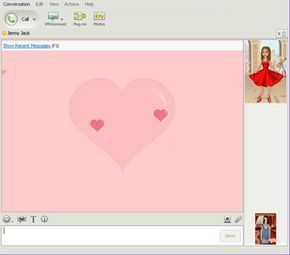
Beyond the basic instant messaging core, Yahoo offered a suite of features designed to customize the experience. You weren’t just sending text; you were managing notifications, guarding your digital footprint, and decorating your chat windows. Here is how the technical side of those settings actually worked.
Configuring Alert Notifications
The alert system was your first line of defense against missing a message or an email. It tracked incoming IMs, contact status changes (online/offline), new mail, and calendar events. Getting it right required digging into the preferences.
Navigate to the Messenger menu. Select Preferences. Click on Alerts. Check the box to Enable Alert Sounds. This was the master switch. If this wasn’t on, nothing else mattered.
From there, you could drill down. The Event menu let you pick specific triggers. Did you want a sound for every new message? Only for emails? The interface let you choose the type of alert for each event. You could pick a default sound from the provided menu or upload your own audio file. Once you configured the triggers, closing the window saved the settings. Simple, but effective for keeping tabs on your inbox without constantly checking it.
Managing Privacy and Stealth Modes
Privacy in Yahoo Messenger was handled through two distinct mechanisms: stealth settings and the ignore list. These tools allowed you to control who saw you as active and who could even reach you.
Stealth Settings were about selective visibility. You could appear offline to some contacts while remaining visible to others. This wasn’t a global “invisible” mode. It was granular. To set this up, right-click on a specific contact or group name. Select Stealth Settings. Choose your status: online, offline, or permanently offline. Click OK.
How do you know if it worked? Look at your messenger list. If a contact’s name appears in italics, they are in stealth mode for you. Conversely, if you are in stealth mode for them, their name would appear italicized from their perspective, or you simply wouldn’t appear on their active list.
For more aggressive protection, you could block messages. The Ignore List allowed you to block a single person or up to 100 contacts at once. When ignored, you effectively vanished. They would always see you as offline.
To add someone to the ignore list:
– Go to Messenger > Preferences > Ignore List.
– Ensure Ignore only the people below is selected.
– Click Add. Enter the Yahoo ID of the person you want to block.
– Click Ignore, then OK.
If you needed to reverse this later, you entered the ID again and clicked Remove. It was a straightforward blacklist system, though the requirement to delete the contact from your main list before ignoring them was a bit clunky by modern standards.
Customizing with Avatars and IMVironments
Personalization was the fun part. Yahoo Messenger supported avatars, audibles, and IMVironments. These weren’t just stickers; they were integrated into the interface.
Avatars were customizable characters. You could alter their physical appearance, clothing, accessories, and background. These icons served as your personal identifier in the IM window and contact list.
To create one, you had to visit avatars.yahoo.com. Once created, displaying it required a two-step process:
1. Go to Messenger > Preferences.
2. Click Display Image.
3. Check the Avatar box to show your image.
4. Select Enable display images everywhere so you can see avatars from your contacts too.
Audibles were animated, talking characters. You could send them in an IM to make a joke or comment. Access them by clicking the lips icon below the conversation window. Select the character and click Send. For a full library, click More Audibles.
IMVironments (or IMVs) changed the look and feel of the conversation window. They were themed backgrounds that both you and your contact could see. Examples included:
* Fishtank : An animated background with swimming fish.
* Doodle : A shared canvas where both parties could draw in color.
* Interactive Games : Various IMVs let you play simple games together while chatting.
These features turned a plain text box into a shared space. They were lightweight, browser-independent, and added a layer of personality that plain text couldn’t match.
Using Webcams
Webcam functionality allowed you to view a contact’s video feed or send your own. This was a step up from audio-only calls.
Viewing someone else’s webcam was straightforward. Open the IM window. Click Contact. Select Contact Options. Choose View Webcam. The video feed would appear in the window.
Sending your own video was more complex. It required specific hardware and software configurations. The instructions pointed users to the Yahoo Messenger’s Webcam Help section for detailed requirements. Bandwidth and driver compatibility were common hurdles, making the feature less accessible than the text-based options.
Conclusion
These features—alerts, privacy controls, personalization, and webcams—transformed Yahoo Messenger from a simple utility into a platform. They addressed real user needs: notification management, privacy control, and social expression. While the interface has aged, the underlying logic remains relevant to how we manage digital presence today.
The next page covers the convenient tools that streamlined the messaging process even further.
Mastering the Keyboard for Speed
If you are still clicking through menus to navigate your contact list, you are wasting time. Yahoo Messenger includes a suite of keyboard shortcuts designed to streamline the experience. The most immediate win is using Control + F. This command instantly triggers a search function, allowing you to filter your contacts without lifting your hands from the home row. To see what other commands are available, simply hover over the drop-down menus in the interface. The software displays the specific key combination for each action, turning a mouse-heavy process into a keyboard-driven workflow.
Sharing Visuals with Flickr Integration
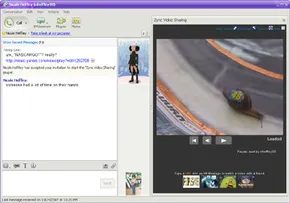
Version 9.0 introduced a native integration with Flickr, transforming the chat window into a shared gallery. Instead of pasting links that open in new tabs, you can now share photos directly within the conversation. A side panel hosts a thumbnail strip of your album, while the main view displays the selected image in high resolution.
A slider at the bottom allows you to scrub through images manually. Click the arrow to the left of the slider to toggle a slideshow mode. This feature is particularly useful for visual storytelling with friends, as it keeps the interaction contained within the IM window rather than fragmenting it across multiple browser tabs.
Collaborative Media Viewing
The platform supports embedded previewing for both videos and maps, provided you have the right version. If you have a URL for a video or a map location, copy it and paste it into the message input field. The interface detects the link and renders a preview pane directly in the conversation window.
For video content, a “Watch with Me” button appears. Clicking this initiates a synchronized viewing session, allowing you and your contact to watch the same clip simultaneously. This eliminates the friction of coordinating timestamps or dealing with lag between separate streams.
Navigating Chat Rooms and Voice Features
Yahoo Chat allows users to congregate in topic-specific rooms. Accessing these requires navigating to Messenger > Yahoo Chat > Join a Room. You must select an alias, review the available rooms, and double-click to enter. Note that these chat rooms are restricted to users aged 18 and older.
Voice chat adds another layer to these rooms, though it comes with stricter hardware and software requirements. You need a Windows operating system, Internet Explorer, a microphone, a sound card, and speakers. Once inside a room, click the voice icon to activate the audio channel. The interface uses a push-to-talk mechanism: hold the green “Talk” button to broadcast your voice to others in the room. Release the button to stop transmitting. This method prevents audio feedback and ensures clear communication in noisy environments.
Extending Functionality with Plug-Ins
Plug-ins act as mini-programs that slot into the messenger interface, expanding its utility beyond simple text exchange. They fall into two categories:
- Conversation Plug-ins: Located above the chat window, these enable shared activities. You can shop, play games, or check flight schedules while maintaining your conversation.
- Tab Plug-ins: Found below the contact list, these provide real-time data. Examples include calendar alerts or the status of an online auction bid.
To manage these tools, click the “Add Plug-ins” button for tab extensions or the “Plug-ins” button for conversation add-ons. The Yahoo Gallery hosts a wide variety of third-party options, though the core features remain stable without them.
Enforcing Digital Boundaries with Parental Controls
For families, Yahoo Messenger offers robust parental controls designed to limit exposure to inappropriate content and manage online hours. These controls require setting up a Yahoo family account with sub-accounts for each child. A dedicated program must be installed on every computer used by the family to enforce these rules.
Key features include:
- Web Filtering: Block specific websites or entire categories of sites.
- Contact Approval: Restrict communication to pre-approved email pals.
- Time Management: Set limits on when and how long a child can stay online.
- Reporting: Receive weekly report cards detailing visited sites, sent/received emails, and completed instant messages.
Parents can also access their child’s account to correct inaccurate personal information. For best practices, Yahoo recommends that youths use avatars instead of photos, adopt aliases, set their status to invisible, and archive all conversations. The Yahoo Messenger Safety Guide provides additional resources on internet safety and parenting strategies.
The next step involves taking this functionality on the go. We will explore how to access Yahoo Messenger from smartphones and PDAs, ensuring connectivity isn’t tied to a desktop.
Web-Based Access and Limitations
Yahoo expanded its reach beyond the desktop client, allowing users to log into Yahoo Messenger for the Web from any browser. This meant you could check your inbox or message archives even when miles away from your home computer. The interface mirrored the desktop version, letting you add contacts, toggle your status, and search through past conversations. You could also manage your block list and stealth settings, though those changes wouldn’t sync back to your main profile until you logged into the full application again.
There were significant caveats. File transfers were off the table. Features like IMvironments, voice chat, and plugins simply didn’t load in the browser. It was a lightweight, read-only experience for when you needed quick access without the heavy software. To get started, you just headed to the web portal, signed in with your Yahoo ID, and waited for the message list to populate on the left side of the screen.
Free Computer-to-Computer Calls
Voice over Internet Protocol (VoIP) made PC-to-PC calling free and surprisingly straightforward. You needed Yahoo Messenger with Voice, a Windows OS, a sound card, and either a headset or separate speakers and a microphone. Before dialed numbers ever rang, users had to verify their audio setup. You’d click “Actions,” select “Call Setup,” and ensure your mic and speakers were picking up sound correctly.
The calling process was intuitive. If someone on your list had a phone number attached to their profile, you clicked their name, hit the phone icon, and selected “Call (Person’s) computer.” A ringtone would play on their end. Once they answered, the connection was live. To end the call, you simply clicked “End Call.” You could also initiate a voice call while already in a text chat by clicking the phone icon above the conversation window. For users not on your messenger list, you could manually type their computer phone number into the “Type a Yahoo ID” bar to start a conversation.
Mobile Integration and SMS
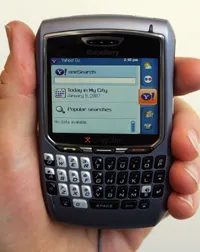
Mobile integration turned your cell phone into a secondary IM client. You could sign into Yahoo Messenger from a smartphone, PDA, or feature phone, receiving instant messages as standard text messages. This required registering your mobile number first. Inside the main messenger window, you clicked “Forward,” then “Add a phone number” next to the “Forward offline IMs to” section. Once registered, any IMs you missed while logged out of your computer were automatically forwarded to your mobile device as SMS texts. A small phone icon next to your name in your contacts’ lists signaled that you were reachable via mobile.
Sending texts from the desktop was equally seamless. You navigated to the Actions menu, selected “Send an SMS Message,” entered the recipient’s mobile number, typed your text, and hit send. Alternatively, you could click the text message icon in your address book or right-click a contact name in the messenger list and choose the same option.
The ecosystem was robust, but the guide here only scratched the surface. For deeper dives into the mechanics behind these services, you had to look further.
Lots More Information
Related HowStuffWorks Articles
- How Instant Messaging Works
- How E-mail Works
- How VoIP Works
- How Smartphones Work
- How a BlackBerry Works
More Great Links
- Yahoo Messenger
- Yahoo Messenger Help
- Yahoo