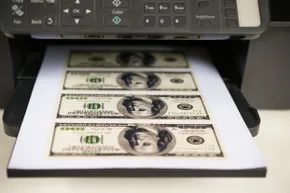
Printing from your computer should feel like hitting a free bonus round. Instead, it feels like feeding a money shredder. We’ve all clicked “Print” only to watch our bank accounts bleed out over the next few weeks. It is absurd that we cannot just press a button and spawn cash, so we are stuck trying to slash expenses wherever we can.
But cutting the cost of printing isn’t a simple math problem. Buying the cheapest printer on the shelf is a trap. Using generic cartridges from the dollar store is another. These shortcuts don’t save you money; they bankrupt you slowly.
The printer itself might cost $50. The ink to run it could easily cost $500 over its lifespan.
This is the ink cartridge cost trap that catches everyone. You buy a bargain-bin printer. It works fine. Then you realize the color ink is a single unit. When the cyan runs out, you throw away the magenta and yellow, which are still 90% full. You are literally throwing cash into the trash can. You buy new cartridges more often. You spend hundreds more on ink than the hardware.
Then there is the paper. Stop using premium glossy stock for your grocery lists. If you load fancy paper and forget to switch it back, you’ll use a sheet of $1/lb paper to print a one-page document. That is a waste you can control.
You also need to look at the features. Do you actually need color? If you are printing tax returns and essays, a black-and-white laser or mono inkjet is cheaper to own and operate. More features mean higher upfront costs and more parts that can break.
We pay these premiums because marketing convinces us we need everything. And because we value convenience. But you don’t have to accept the status quo. You can lower your expenses today. Here is how.
10: Drop Ink Use in Draft Mode
The quickest way to reduce ink cartridge costs is to stop trying to make every print look like it belongs in a gallery. Use draft mode.
Draft mode lowers the resolution. It uses less ink per page. For internal documents, emails, and rough drafts, the difference in quality is negligible. The difference in cost is immediate. You get more pages per cartridge. You change cartridges less often.
Most printers have this setting. It is usually under “Preferences” or “Properties” before you hit print. Look for “Draft,” “Eco,” or “Fast” mode. Turn it on.
This is not about poor quality. It is about efficiency. If you are printing 10 pages of text, you do not need 100% density. You need readability. Draft mode gives you that.
It seems obvious. But people ignore it. They want their documents to look perfect. They don’t realize they are paying for pixels that no one will ever see.
Stop paying for perfection. Start printing efficiently.
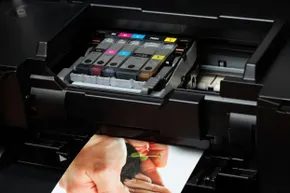
Why Draft Mode Isn’t Just for Rough Drafts
You’re bleeding money. Not on the hardware, but on every single page that slides out of the tray. The fix is simpler than buying a new printer or switching to laser technology. It’s called draft mode.
Most printer software hides this setting deep in the preferences menu, often labeled as “Print Quality” or “Eco.” When you toggle it on, the printer literally sprays less ink. It’s not a trick. It’s physics.
Depending on your specific model, you’ll save between 5 and 10 percent per page. Ten percent sounds negligible on a single sheet of paper. But run that through a dozen printouts a day for a year, and the math shifts. You’re looking at a significant reduction in your monthly ink bill.
How Draft Mode Actually Works
Don’t expect high-res output. Draft mode achieves those savings by altering the density of the ink dots. The printer lays down fewer tiny dots to form text and images.
The result? Grainier text. Pixelated photos. It looks like a newspaper from the nineties. For a client presentation or a photo book, this is unacceptable. But for internal memos, spreadsheets, or reading materials you’ll glance at once and archive, it’s perfectly fine.
There is a secondary benefit that often gets overlooked. Because the printer is moving less physical material onto the page, it often finishes jobs faster. Less ink spraying means less drying time and quicker processing. Two wins for the price of one click.
The Low-Cartridge Lie
Ignoring low-ink warnings can save you hundreds of dollars a year, but you have to know how to manage the remaining sludge.
Here is the part that makes most users furious: your printer tells you the cartridge is empty. It flashes a red light. It locks you out. You rush to the store, buy a new cartridge, and install it.
Then you find out there was still half an ounce of ink inside.
Manufacturers design cartridges to fail before they are actually dry. They do this for profit. But you don’t have to play along. When that warning pops up, ignore it.
Modern inkjet printers are surprisingly resilient. They can often print for dozens, sometimes hundreds, of additional pages after the “Replace Cartridge” message appears. The printer might flag an error code, but if you choose to override it or continue printing, the machine will keep working until the printhead literally runs dry.
Why Manufacturers Want You to Change Early
It’s not just about the cartridges. It’s about the habit. If you wait until the ink is truly gone, you might encounter clogged printheads. That’s a different problem. That requires cleaning cycles, which waste more ink.
But if you swap cartridges while there is still visible ink left, you are throwing away money. The “Low Ink” warning is a soft threshold, not a hard limit. It’s a suggestion disguised as a crisis.
So, when the light comes on, keep printing. Use the remaining ink until the print quality drops to unreadable levels. Then, and only then, do you replace it.
Which Printer Handles This Best?
Not all inkjets behave the same way. Some brands are
The Phantom Low-Ink Panic
Your printer isn’t trying to scare you. Those flashing lights and intrusive system dialogs claiming your device is on the brink of a catastrophic ink shortage are often dramatic overreactions. Modern inkjets are essentially equipped with early-warning systems that function more like air-raid sirens than precise fuel gauges.
Don’t panic. Don’t rush to the store.
Testing has repeatedly shown that these warnings can trigger when a cartridge is still up to 40 percent full. While newer models have tightened their sensors to be more accurate than their predecessors, the system generally still fires when there is legitimate ink left in the tank. It rarely warns you when the reservoir is actually dry.
Use these alerts as a nudge, not a command. They are useful for reminding you to reorder supplies before you run out completely. But installing a fresh cartridge the moment the light blinks? That’s often just throwing money away.
If your printer supports it, check the physical cartridge. Many have clear or translucent casings that let you see the actual ink level. A quick visual inspection is often more reliable than the software’s anxiety. Wait until the print quality actually degrades or the page comes out blank before swapping it out.
8: Double-check Your Work
You think you’re saving money by going green with your printer settings. You’re not. Not really.
This is where the myth of the “eco-friendly” font collides with the hard reality of ink economics. You’ve likely seen it. A font that looks like a delicate, elegant script or a thin, modern sans-serif. It looks beautiful on a high-resolution screen. On paper? It’s a disaster waiting to happen.
How Font Choice Drives Ink Consumption
Let’s look at the mechanics. Most consumer printers are inkjet. They spray droplets. When you use a thin font, the printer has to lay down multiple passes to ensure the lines aren’t translucent. That’s not just time. That’s ink. Lots of it.
A bold, heavy typeface covers the page with fewer passes. The ink density is achieved faster. The machine doesn’t struggle to make a hairline visible. It just lays it down. Solid.
Using a lightweight font forces your printer to work harder, using more ink per character to achieve legibility.
Think of it like this. Would you rather spend $5 on a single thick marker or $50 on fifty thin pens to write the same sentence? The thick marker wins. Every time.
Which Fonts Actually Save Money?
You don’t need to switch to Courier. You don’t need to go back to the typewriter era. But you do need to stop using fonts that are essentially invisible until you stare at them.
- Arial Black or Impact : These are heavy. They use ink efficiently because the coverage is high.
- Verdana : Designed for screen readability, but its wide spacing and moderate weight make it surprisingly ink-efficient compared to its thinner siblings.
- Helvetica Neue Bold : If you must use Helvetica, go bold. The regular weight requires more ink to avoid looking ghostly.
Avoid:
* Any font with “Light”, “Thin”, or “UltraLight” in the name.
* Script fonts. They look fancy. They also look like they were printed by a broken machine.
Where Does This Matter Most?
Not in your personal blog. Not in the draft emails you delete after reading.
It matters in high-volume documents. Reports. Presentations. Student theses. If you are printing 50 pages of a document in Garamond Light, you are burning through a cartridge twice as fast as if you had chosen Garamond Standard.
And it’s not just the ink. It’s the waste. If the print comes out too faint because you used a thin font on cheap paper, you throw it away. You reprint. Now you’ve wasted paper, ink, and your time.
Why Eco Fonts Aren’t Just a Buzzword
Manufacturers advertise “Eco Mode” on their printers. It reduces ink density. It’s helpful. But it’s not a cure-all. If you start with a font that is already struggling for coverage, Eco Mode will just make it unreadable.
The real savings come from the source. The document.
Choose your typeface with the printer head in mind. Not just the screen in front of you. It’s a small choice. It changes nothing about the content. But it changes everything about the cost.
You save money. You save paper. You save
The Ecofont Trade-off: Save Ink, Lose Ink Density
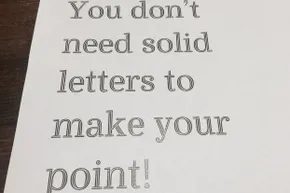
Traditional typefaces are built on solid, unbroken strokes. They look sharp. They feel professional. But that density comes at a cost. When you print a page of standard Times New Roman or Arial, the printer lays down a thick layer of pigment. It looks great on glossy paper, but on the printer’s meter, it’s a disaster. You are burning through cartridges at a rate that makes no financial sense.
The solution isn’t to stop printing. It’s to change the geometry of the letters.
Eco fonts, often referred to as Swiss cheese fonts, introduce microscopic voids into the letterforms. These aren’t errors. They are deliberate holes—tiny dots or fine lines punched through the black ink. The effect is immediate. The text appears slightly lighter, a bit more airy. If you hold a page up to the light, you can see the pattern.
But look at the bottom line. By removing that solid fill, you reduce ink consumption by roughly 25 percent per page. Some estimates go higher. That is money staying in your pocket. That is fewer cartridge replacements.
You don’t need to be a graphic designer to access this. Search for “eco fonts” and you’ll find dozens of free downloads. Some are clunky. Some don’t render well on older printers. It’s a gamble. If you want something more robust, there is Ecofont software. This tool doesn’t just offer a typeface; it acts as a driver. It takes whatever font you are currently using—Arial, Calibri, Helvetica—and algorithmically punches holes into it in real-time. You keep your preferred style. You get the savings.
Third-party Inks: The Next Layer of Savings
Once you’ve optimized the font, you have to look at the ink itself.
Manufacturers sell cartridges with proprietary chips. They want you to buy their brand. They want you to pay a premium for the “original” experience. But the ink inside those bottles is rarely secret formula magic. It’s often generic pigment or dye, similar to what you can buy in bulk.
This is where third-party inks come in. Also known as compatible or refillable cartridges, these alternatives bypass the manufacturer’s licensing. They use standard hardware to fit into your printer. The cost difference is staggering. You might pay $5 for a third-party black cartridge that performs 90 percent as well as the $30 original.
There are risks, of course. Some printers lock out non-OEM cartridges with firmware updates. You might void your warranty if you get caught. But for many home offices and small businesses, the math is simple. If the print quality is “good enough” for internal documents, drafts, and everyday correspondence, the savings compound quickly. You aren’t just saving on the ink. You’re saving on the shelf space. You’re saving on the logistics of ordering replacements.
It’s a pragmatic approach to hardware. You treat the printer as a tool, not a subscription service.

Printer manufacturers have spent decades building a fortress around their ink sales. They claim that only their proprietary formulas deliver consistent results. Some even go so far as to threaten that using non-OEM supplies voids your warranty. It’s a powerful deterrent. But let’s be honest. Most of them just want you to keep buying.
The reality is messier. If you prioritize archival-quality prints, they might actually be right. Third-party inks frequently fall short on color accuracy and sharpness. The proprietary mix is engineered for specific density and drying times. You won’t see that same fidelity in a generic bottle. Then there’s the hardware. Modern cartridges come with identification chips. These little silicon gates block anything that isn’t approved. Your printer will simply refuse to print. Even if you bypass the chip, the ink chemistry might interact poorly with the print head nozzles. Clogs happen. Damage follows.
Yet, for the average home user or small business, perfection isn’t always the goal. Sometimes you just need a draft document. Or a quick label. In those cases, third-party cartridges are hard to ignore. You can find them online for a fraction of the OEM price. If you print regularly, the savings stack up fast. Hundreds of dollars a year isn’t a rounding error. It’s real money. You accept the risk. You get the output. It’s a trade-off.
5: Buy in Bulk
The math gets even better when you stop buying single cartridges. Printer ink is essentially liquid plastic. It doesn’t expire quickly if stored correctly. Stocking up changes the unit cost dramatically.
Large format ink jets and high-volume laser printers are the biggest offenders when it comes to per-page costs. But even standard office printers see a significant drop in cost-per-page when you switch from single-pack purchases to bulk boxes. Manufacturers often include discounts for multi-packs. Resellers offer even deeper cuts on 4-packs or 6-packs.
This strategy works best if you know your consumption rate. Don’t buy five years’ worth of magenta. Buy enough to last six months. That way, you lock in the price without worrying about shelf life or storage space. It also means fewer trips to the store. Fewer delivery fees. Fewer interruptions in your workflow.
Is it worth the upfront cash? For high-volume users, absolutely. The break-even point is usually reached within the first few months. After that, you’re just saving. Just remember to store those boxes in a cool, dry place. Heat ruins ink. Moisture ruins boxes. And a ruined cartridge is just expensive trash.
So you’ve gone the third-party route. You’ve bought in bulk. You’re saving money. But what happens when the printer complains?
Most modern printers use smart counters. They track how many pages you’ve printed. They monitor ink levels via sensors on the cartridge. When the level drops below a threshold, the printer throws a warning. Some shut down completely. Others let you override, but with a nagging banner on every print job.
This is where the fragility of the system shows. OEM printers are designed to work together. The printer knows the cartridge. The cartridge knows the printer. They speak the same language. Third-party cartridges? They’re often improvising. The chip might mimic the OEM
Stop Overpaying for Last-Minute Ink Runs
There is a specific kind of panic that sets in when the printer light turns amber. You know the one. The one where you realize you are out of magenta, or black, or both, at 8 PM on a Sunday. So you rush to the store. You pay a premium. You go home. It is a cycle that costs more than just the cash in your wallet; it costs sleep, it costs time, and it costs sanity.
The hardware markup on individual cartridges is steep. Brick-and-mortar office supply stores know you are desperate, and they price accordingly. Even if you order online, buying single units is rarely the smartest financial move. Paper follows the same cruel economics. Buying those flimsy, small packs aimed at the occasional home user drives up your cost per page significantly. You are paying for the convenience of small quantities.
How to Buy Printer Supplies for Less
The solution is boring, but it saves money. Buy printer supplies in bulk online.
It works like any other bulk purchase. The volume discount is real. Multi-packs usually contain every color you need, ensuring you aren’t left with a rainbow of cartridges and one missing black. That single-unit markup vanishes, often saving you $10 or more per pack. Paper is no different. Buying a full case of inkjet paper online drops the price per sheet dramatically compared to buying five reams separately over six months. If you have a physical store nearby, compare prices, but online retailers often undercut the big-box office stores on volume orders.
The Subscription Model for Printer Ink
You don’t even have to remember to reorder. Subscribe to an ink replacement service.
Newer, Internet-connected printers often come with this factory-installed. You subscribe, and the machine monitors its own levels. When the ink gets low, it places the order. It is automatic. The cost is lower than the store price, and you avoid the “I thought I had more ink than I did” delusion. You get the bulk discount without the physical clutter of ten spare cartridges taking up space in your junk drawer.
No more late-night runs. No more panicked trips. Just a steady supply chain for your home office.
4: Go for Grayscale
When the color cartridge dies, do you throw away the whole printer? Or do you accept the compromise?

The Case for Grayscale
Let’s be honest: most of your documents don’t need to look like a Rorschach test. By default, inkjet printers are programmed to throw color at the page. That’s fine if you’re printing family photos or vibrant marketing materials. It’s a waste if you’re printing a spreadsheet, an email, or a two-page contract. You are literally paying for cyan, magenta, and yellow ink to produce a black dot.
Color makes graphs pop. It makes pie charts exciting. But does it help you understand the data? Usually, no. Black and white text is often sharper and easier to read on screen or paper. Switching to monochrome isn’t just about saving money; it’s about clarity. And yes, it saves you those few cents per page that add up to a significant chunk of cash over a year.
Where to Find the Switch
You don’t need to be a technician to toggle this setting. When you hit Print in any application—Word, Chrome, Excel, Preview—the dialog box will appear. This is your command center.
In many cases, it’s trivial. Look for a checkbox that says Black & White or Grayscale. Tick it. Done.
If your interface is more complex, you might need to dig. Click on Properties, Preferences, or Advanced Settings. You’ll see tabs for paper size, orientation, and quality. Look for a Color or Output tab. Change the setting from Color to Black and White or Monochrome. Some drivers label it Grayscale, which allows for shades of gray but still skips the color cartridges.
Why Your Printer Uses Color for Black
Here’s the weird part: many modern inkjets don’t use just the black ink cartridge to make black text. They mix small amounts of color ink to create a richer, darker black. This is called composite black. It looks nice on glossy paper. It looks terrible on your wallet.
By forcing the printer into true monochrome mode, you bypass that mix. The printer uses only the black ink tank. You cut your consumption of three cartridges by a fraction, and you reduce the cost of every single page.
3: Buy a Better Printer
If you find yourself constantly fighting with dialog boxes, or if the cost of ink still stings, it might be time to upgrade. Not all printers are created equal. Some models have separate ink tanks that are cheaper to refill. Others have laser engines that don’t bleed ink at all.
But before you buy, ask yourself: do you really need color? If you print mostly text, a monochrome laser printer might be the smarter move. It’s faster. It’s sharper. And it doesn’t care if you forget to replace the cyan cartridge for six months.
Still, many people stick with inkjets for versatility. If that’s you, make sure you’re not paying for features you don’t use. Every time you print a document in color that could have been black and white, you’re throwing money away.
And let’s not forget the environmental angle. Less ink means fewer cartridges in landfills. It’s a small thing, but it adds up.
So, the next time you’re about to print
The Ink Trap: Why Cheap Printers Cost More
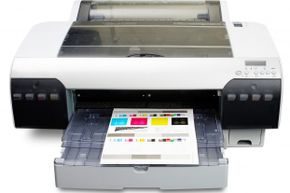
You see that $50 inkjet printer at the big-box store. It looks like a steal. But here is the ugly truth: the hardware is often a loss leader. Manufacturers sell you the box at a loss, banking on the fact that you will be locked into their proprietary cartridges for years. This business model explains why budget models often have abysmal ink efficiency.
The math is simple, if predatory. When a printer is cheap upfront, the engineering on the print head and ink distribution is frequently cut corners to keep the bill of materials low. The result? Higher ink consumption per page.
Decoding Page Yield Ratings
Every reputable manufacturer publishes a page-yield rating for its cartridges. This is the standard metric for comparing printer ink costs effectively. You will find this figure in the product specifications or linked directly on the ink purchasing page.
It is usually expressed as a single number, like 300 pages. But what does that actually mean?
“Standard page yield is typically calculated based on 5% page coverage on letter-size paper. If you print high-resolution photos or dense text, your actual yield could be half that number.”
This is where most buyers get burned. They see “300 pages” and assume they are getting 300 pages of usable documents. If you are printing photos or heavily formatted reports, that number drops significantly. Always check the coverage percentage associated with the yield.
Budget Printers vs. High-Yield Models
The correlation between price and efficiency is strong. Printers under $100 almost always feature lower page yields compared to models priced between $250 and $300. The more expensive units often use separate black and color cartridges or larger tanks, which reduces the cost per page.
Your printing frequency dictates which category you belong to.
- The Rare Printer: If you print a tax return or a boarding pass once a month, a cheap printer makes sense. The low upfront cost outweighs the higher per-page ink cost because you barely use it.
- The Frequent Printer: If you are printing homework, receipts, or labels weekly, the cheap printer is a trap. The higher ink consumption rate will bleed your budget dry faster than the savings on the initial purchase.
2: Paper Matters, Too
Don’t ignore the other side of the equation. Using standard 20lb paper with a high-quality inkjet can lead to smudging and warping, especially if the printer uses pigment-based inks that take longer to dry. Thicker paper absorbs ink differently, potentially increasing consumption.
Always match your media to the printer’s capabilities. Cheap paper might save you a few cents per ream, but if it causes jams or poor print quality, you are wasting ink and time.
Ink is the lifeblood of your inkjet. It’s expensive, and without it, your printer is just a very heavy paperweight. Paper is the oil. You don’t burn through it as quickly as ink, but you still need it constantly. You can save a significant amount of money simply by changing how you handle paper-plundering habits.
Save Money by Reducing Unnecessary Printouts
Start by asking if you actually need a hard copy. Email and PDFs work for almost everything now. Personal or professional, digital files are usually the better stand-in. If you do need physical paper, try duplex printing. Many modern printers have automatic duplexers. They flip the page and feed it back through to print on the reverse side. This cuts your paper usage in half.
Use Basic Copy Paper for Everyday Tasks
Do not buy expensive specialty paper for regular jobs. Cheap copy paper is fine for most things. Unless you are printing something important like a resume or a wedding invitation, the bargain stuff works just as well. It looks the same to most people.
Print Only What You Need
Consider if you need the entire document. Tax forms are a common example. They often have lots of extra details you do not need to complete your task. Print only the specific sections you require. You will use fewer consumables. You will save money.
1: Don’t Print Photos at Home
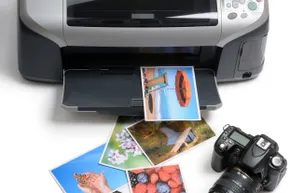
The Hidden Cost of Home Photo Printing
Inkjets designed specifically for photos can produce output that holds up against professional lab results. The quality is there. The convenience is undeniable. The price tag, however, is a different story.
You are looking at photo-grade paper costs ranging from 5 to 20 cents per small sheet. That is just the base. The ink adds a significant layer of expense because sharp, crisp images demand heavy pigment consumption. If you print more than a handful of photos, the math shifts quickly. Uploading your images to a dedicated print lab is almost always the cheaper route. Many online services even let you skip shipping fees by picking up orders at a local retail partner.
Use your home office printer for immediate needs or small batches. For bulk orders, outsource the work. You save money by letting someone else handle the hardware and consumables.
Inkjet printers are a reliable but quirky modern tool. They deliver exceptional text and image quality. They work when you want them to. They let you print from your pajamas. The downside is the ongoing operational cost. Choose your printer model carefully. Adjust your print settings to save ink. You can trim costs significantly. Your home office budget will thank you.