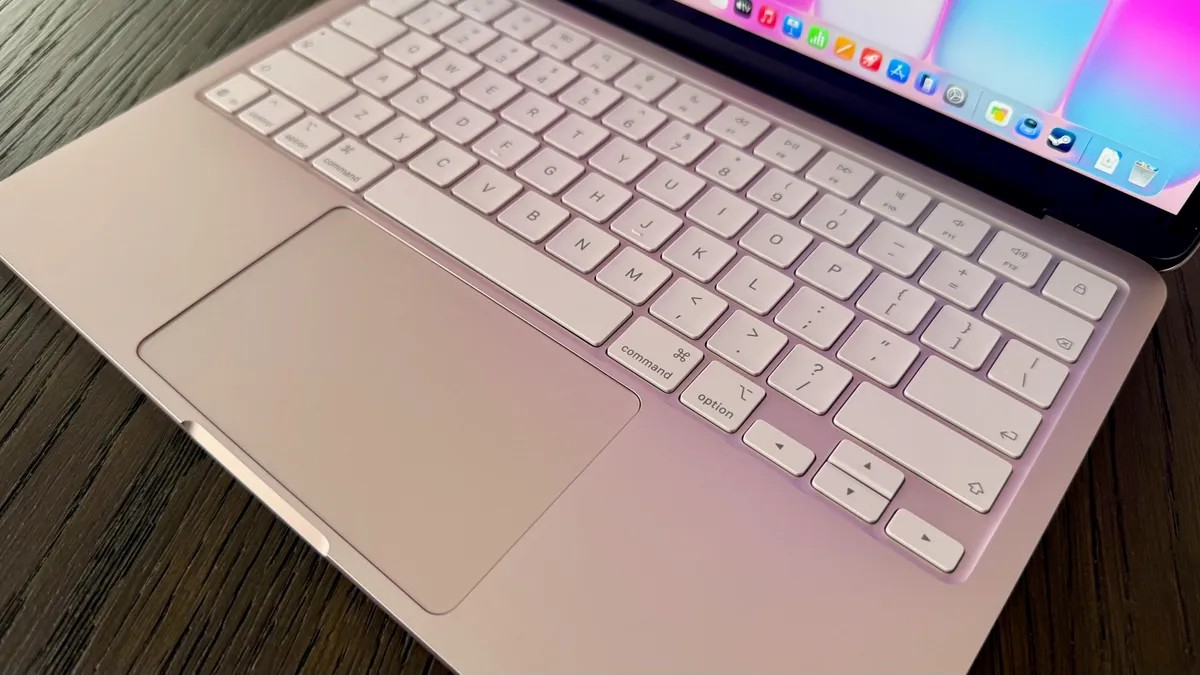
Back in 2008 I traded Windows PCs for an iMac. It felt cleaner. Sharper. Like the machine was thinking alongside me, not against me.
Years have passed. My fingers have learned their way around the board. The biggest shift wasn’t hardware. It was muscle memory. Specifically, macOS keyboard shortcuts.
I copy links, reopen dead tabs, and snipe screenshots without lifting a wrist. It’s fluid now. Unthinking.
Maybe you just unboxed a new MacBook. Or maybe you’ve been around since the beige Macintosh days. It doesn’t matter. These shortcuts change how the OS feels under your hands.
Think you know them all? Look closer. You’re probably missing a few.
The Command Key Rules
Coming from a PC? Your thumb probably hunts for Control. Stop that. On a Mac the king is Command. Use either one. Left or right. Doesn’t matter.
Command + C
Copy that text.
Command + X
Cut it. Move it.
Command + V
Paste it back in.
Command + Z
Undo. You made a mistake. Fix it.
Shift + Command + Z
Redo. Changed your mind again? Bring it back.
Command + A
Select everything. Bold and aggressive.
Screenshots and Screen Recordings
Capturing your screen used to be a chore. Now it’s instantaneous. You can grab an image or record the whole thing.
Command + Shift + 3
The entire screen. Boom. Done.
Command + Shift + 4
A specific area. Your cursor turns into a crosshair. Click. Drag. Let go. Precision capture.
Command + Shift + 5
This is the control panel. Set a timer. Pick a save folder. Or start recording a video of the screen. To stop, press Command + Shift + 5 again and hit pause.
Why reach for a tool app when the keyboard already does it?
Special Characters Made Easy
Need a tilde? An umlaut? Typing symbols usually requires a search engine or a clumsy switch to Emoji mode. Not anymore.
Hold Option and press:
- E for the acute accent
´ - I for the circumflex
ˆ - N for the tilde
˜ - U for the umlaut
¨ - O for the letter
ø
Web Browsing on Rails
Safari. Chrome. Whatever browser you prefer. These commands work everywhere. They make your tabs feel like a symphony instead of a traffic jam.
Command + T
Open a new tab.
Command + W
Close the current tab.
Command + Q
Quit the whole application.
Command + L
Jumps right to the address bar. Search without touching the trackpad. Fast.
Command + N
New window. Finder or browser.
Command + Shift + T
Accidentally closed a tab? This brings back the last one you shut. Magic.
Command + R
Refresh the page.
Command + 1 through 9
Jump directly to a tab number. First tab. Tenth tab (sort of).
Command + ` (tilde key)
Cycle through open windows in the current app.
Command + +
Zoom in.
Command + –
Zoom out.
Symbols and Accents
Mac shortcuts for symbols fall into two buckets. Some put accents on any letter. Others create specific glyphs.
For diacritical marks like acute, circumflex, tilde, and umlaut: Hit Option + E, I, N, or U respectively. Then type the letter. Want an Ô? Option + I, then O. Easy.
Other combinations create dedicated symbols. Numbers, punctuation, letters—all transform with Option or Option + Shift.
Want a tiny apple logo in your text? Try Option + Shift + K.
This isn’t every single shortcut Apple has hidden away. Just the ones that change daily workflow. If you need more, Apple’s support site has the deep dive. But honestly? These are the ones that matter. The rest is just noise.
Most people still hunt and peck with the mouse. They don’t have to.