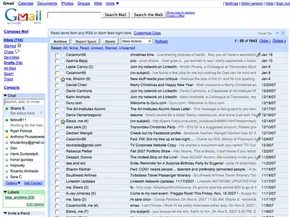
It started with a gigabyte of storage. In 2004, that wasn’t just a feature. It was a shock to the system. Other providers were offering mere megabytes. Gmail offered room to breathe.
This simplicity did the heavy lifting. Built-in search. Smart message groupings. These weren’t gimmicks. They were fixes for problems users didn’t even know they had yet. The result? Gmail didn’t just enter the race. It won it.
By October 2007, the numbers told the story. comScore Media Metrix data showed Gmail had climbed to third place among free email services. That meant 87 million users. It sounded like a lot until you looked at the leaders. Yahoo Mail sat at the top with roughly 262 million users. Second was MSN Hotmail, now known as Windows Live email, with about 256 million.
AOL and Yahoo had been playing in this space since the 1990s. They had the legacy. They had the brand recognition. But Google had a different secret weapon. It wasn’t just an email client. It was an internal service.
Google Inc. built it first. They tested it on their own employees. Then came the invitation phase in April 2004. You needed a code to get in. Exclusion was a selling point. It felt exclusive. It felt fast.
Then the gates opened.
In February 2007, Google stopped gating the service. Everyone could sign up. The floodgates opened.
What happened next expanded the definition of what email could be. It wasn’t just about sending text anymore. Google added group chat capabilities with AIM, AOL Instant Messenger. Suddenly, your inbox was a communication hub.
Mobile access followed. Gmail for mobile devices meant you weren’t tied to a desk. You could check mail from anywhere. The service also allowed access to emails from other providers. You could pull in AOL or Yahoo Mail directly into your Gmail interface. No more logging into three different sites. One login.
Security wasn’t an afterthought. Virus scanning came built-in. Spam control was aggressive. Shortcuts made navigation faster. The platform supported messaging in 40 languages. Attachments could go up to 20 megabytes. For a long time, that was huge.
We are looking at the mechanics of this beast now. How does it actually work? How do you set up an account without losing your mind? How do you sign in without getting locked out?
The details matter. The features matter. The way you use them matters even more. Let’s dig in.
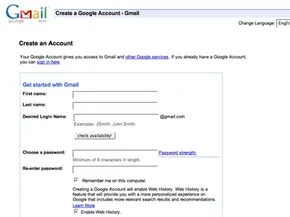
Sign up for a Google account to start using Gmail. Complete the Gmail login process to send your first e-mail. Follow these steps to sign in to Gmail.
Google Account Creation Steps
Go to Google.com. Click “Sign up for Gmail” at the bottom right.
If you already have a Google account, click “Sign In Here.”
If you need a new account, provide your name and country. Choose a login name and password. You must select a security question. Answer it correctly. This helps you recover your password if you forget it.
Accept the terms of service. Accept the privacy policy. Your account is now set up.
How to Sign In to Gmail
Go to Google.com in your browser.
Enter your user name. Add “@gmail.com” to the end.
Enter your password.
Click “Sign In.”
You are now at your mail home page.
Check the box to remain signed in. Do not check this on shared computers. This is a security risk.
Account Recovery Process
Forgot your ID or password?
Click “I cannot access my account.”
This link is below the Sign In button.
Answer questions to verify your identity.
You will receive e-mail instructions.
Follow the instructions to regain access.
Gmail Sign Out Procedure
Click “Sign Out” at the top right.
You are now logged out.
Personalizing Gmail Settings
Click “Settings” at the top right.
Click “General.”
Select your language.
Add a picture to your e-mails.
Add a signature.
Include your name. Include your address. Include your phone numbers.
The signature appears on every e-mail you send.
Set up a vacation responder.
This response is sent automatically.
It is sent to anyone who e-mails you while you are gone.
Click “Save Changes.”
Save any changes to settings.
Next Steps
Learn the basics of sending and receiving e-mails.
Go to the next page.
Gmail Basics
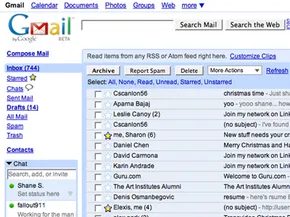
Gmail isn’t just a mailbox. It’s a workflow tool. Once you master the simple act of sending and receiving, you unlock the real utility. You start archiving to declutter. You use search to dig through years of correspondence. You attach files without fear.
How to Send a Message in Gmail
Start by clicking Compose Mail. It’s in the top left corner. Don’t overthink it. Type the recipient’s address in the “To” field. If you have contacts saved, Gmail helps. Type two letters. Let auto-complete do the heavy lifting. Pick the right person from the dropdown.
Need to copy someone? Click Add Cc. These people get the info but don’t need to reply. Need to hide recipients? Use Bcc. Their names stay invisible.
Write your subject. Keep it clear. Type your body in the big box. The toolbar above lets you change fonts. It lets you bold text. It lets you check spelling. You can also drop in links.
Gmail is watching. It saves your draft every few minutes. You won’t lose your work. When you’re done, click Send. A green confirmation appears. If you changed your mind before hitting send, go to your Drafts folder and delete it. Simple.
Receiving and Managing Email Conversations
Look at the number next to your Inbox. That’s your tally. Gmail checks for new mail every two minutes. The number updates automatically.
Here’s how Gmail thinks: it groups messages into conversations. Open one. The latest reply is at the top. Older messages stack below. It looks like a chat thread. Click Expand All if you want to read the whole history at once.
Printing? Click the down arrow next to Reply. Select Print for just that message. Select Print all for the entire thread.
Forwarding is straightforward. Open the message. Click Forward below the text. Enter new addresses. Add a note if you want. Hit send. The original message travels with it.
How to Attach and View Files
Attachments are easy. Click Attach a file under the Subject line. Browse your computer. Pick the document. Click Open. Want more? Click Attach another file. Made a mistake? Click Remove to delete the attachment.
How do you view what someone sent you? Open the message. Click Download at the bottom. Then click Open or Save.
Don’t want to download? Click View as HTML. It opens the attachment in your browser. No files saved to your hard drive.
Gmail plays nice with Microsoft files. Excel spreadsheets open as Google Sheets. Word docs become Google Docs. You can edit them right there. No extra software needed.
Why Archiving Messages Matters
Archiving removes clutter. It moves emails out of your Inbox and into All Mail. They don’t disappear. They’re just stored.
You can find them later. Use Gmail’s search tool. It indexes everything.
To archive a message, check the box next to the sender. Click Archive. The Inbox empties. Peace returns.
Here’s the catch: if someone replies to an archived message, the whole conversation pops back into your Inbox. You can’t lose track of active threads. Archiving just hides completed ones.
Beyond the Basics
This is only the beginning. Gmail has layers. Security filters. Gmail Notifier for desktop alerts. The ability to retrieve and respond to emails from other services.
We’ll get to those next.
Gmail isn’t just a inbox anymore. It’s a hub. To make that hub work for you, Google rolled out several features designed to cut down on noise and centralize your digital life. We’re looking at the tools that handle alerts, consolidation, and safety. Specifically, we need to talk about Gmail Notifier and Mail Fetcher, two utilities that fundamentally change how you interact with your inbox.
Gmail Notifier
Stop refreshing. Seriously. If you’re manually checking your inbox every few minutes, you’re wasting time. The downloadable Gmail Notifier app fixes that. It runs in the background on Windows 2000, XP, or newer. Mac users aren’t left out either; it works on OS X 10.3.8 and up.
The app checks for new mail every two minutes. You don’t need to open the browser. A small icon alerts you. You get a snippet of the last 30 messages. You pick your own sound for the alert. It even syncs with Google Calendar to warn you about upcoming events. It’s minimal. It’s quiet. It works.
Mail Fetcher
Your email life is probably fragmented. You have a Yahoo account from college. An AOL address from your first job. A personal Gmail account you use now. Switching between them is a headache. Mail Fetcher solves this by pulling messages from up to five other accounts directly into Gmail.
Here’s the catch: those external accounts must have POP access enabled. POP, or Post Office Protocol, allows Gmail’s servers to download messages. This means you can access mail even without an internet connection. Once you set it up, the fetch happens automatically. All your mail lives in one place. No more logging into old, dusty services.
Contact Groups
Sending a message to one person is easy. Sending it to ten people is tedious. Typing each address manually is a waste of effort. Contact Groups let you bundle people together.
You create a group by clicking “Contacts” on the left sidebar, then “New Group” in the top left. Name it. Click OK.
To fill it, select the contacts you want. Open the Groups menu. Pick “Add to…” and choose your new group. You can add people later by typing their name or address into the “Add this to group” box below the main list.
When you’re ready to send, open Compose. Type the first few letters of the group name in the “To:” field. Autocomplete takes over. You pick the group. You write. You send. One click, multiple recipients.
Security and Spam
Gmail takes security seriously. It’s not just an afterthought. Every attachment you send gets scanned for viruses. Every attachment you receive gets scanned twice. Once when it lands on the server. Again when you open the message.
Suspicious emails? They go straight to the spam folder. If you see mail in your inbox that doesn’t belong, select it. Click “Report Spam.” The filter learns.
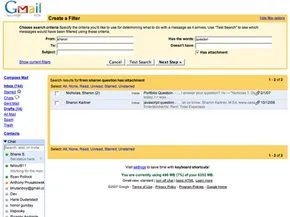
For specific annoyances, you can set up filters. Click “Create a filter” under the search box. Enter your criteria. Hit “Next Step.” Check “Delete it” if you never want to see it again. Click “Create Filter.” Done.
Parental Controls
Kids under 13 need permission to create an account. That’s a hard rule. But parents can do more than just say yes or no. You can use mail filters to block unwanted messages before they ever reach your child’s inbox.
Gmail suggests a few other steps for safety:
- Keep the computer in a public area of the house. Visibility deters bad behavior.
- Use parental control software or browser settings to block inappropriate sites.
- Talk about email etiquette. Discuss what is appropriate to send and receive.
- Warn against downloading attachments from unknown senders. If they’re unsure, check with an adult.
- Advise kids not to share identifiable photos or personal info in emails or chats, especially with strangers.
Where Next?
Gmail doesn’t stop at email. The platform continues to evolve. We’re looking at chat integration, instant messaging with AIM users, mobile access, and even voice mail. The infrastructure is changing. The way we communicate is changing with it.
Gmail Innovations
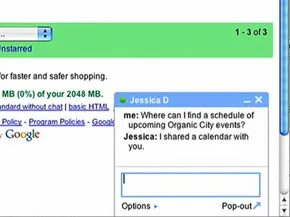
Gmail isn’t just a static inbox for personal computers anymore. It’s an ecosystem. Google has stitched together instant messaging, voice calling, and mobile synchronization into a single interface. You can chat with friends, reach out to AIM users, and check mail on a BlackBerry, iPhone, or any other mobile device.
The core shift here is convergence. Email is no longer isolated.
Mail with Voice
The “Call” button next to a contact’s profile in Google Talk is the gateway to voice communications. It only turns active if the person is currently available. If it’s gray, they’re offline or busy.
When you connect, you aren’t just making a call. You’re integrating voice into your message history.
Contacts can leave voicemails directly through Google Talk. These don’t ring a phone. They arrive as special messages in your inbox.
Look for the subject line: “Voicemail from [ContactName] ([x] seconds).” A telephone icon flags the entry. To listen, you simply click “Play” in the conversation view. The audio plays inline. It feels less like leaving a message and more like sending a file.
Gmail Chat
Chat functionality mirrors Google Talk. You can initiate one-on-one conversations or pull people into a group session.
The visual cue is simple. A colored ball next to a name in your chat list means they are online and ready. Click “Chat,” find the name, and a window opens. Type. Press Enter. Done.
Searching is built into the top bar. You can type a name directly or browse your Contacts list and click the Chat link. When you are finished, click the ‘x’ in the top right corner.
Browser support is specific. It works on Internet Explorer 6.0+ and Firefox 1.0+. Safari and other browsers are excluded in this version. Your conversations are saved. You can search them later. This creates a searchable log of every informal exchange.
Group chat removes the limit on participants. You can talk to an unlimited number of contacts at once.
The setup is manual. Start a chat with one person. Click “Options” at the bottom left of the window. Select “Group Chat.” Enter the names of additional contacts in the “Add a person to this chat” field. The group session persists until everyone leaves or clicks the ‘x’.
Chat and IM with AIM Users
You don’t have to stick to the Google bubble. Gmail chat allows you to sign into your AIM account from within the interface.
AIM buddies appear in your contact list. You can search for them just like Gmail contacts. Click a name. Type a message.
This bridges two major networks. It lets you maintain relationships across platforms without switching applications. The interface treats them the same.
Gmail for Mobile
Mobile access comes in two flavors: browser-based and downloadable.
Point your smartphone’s web browser to Gmail. The interface adapts. It looks like the desktop version. You get search and conversation views. Actions sync automatically. Anything you do on the phone shows up in your regular account.
The downloadable app offers a different experience. It is faster. It uses less data.
To get it, point your phone’s browser to Gmail applications. The app keeps your actions in sync but optimizes for bandwidth. This matters. Data costs and slow connections make efficiency key.
Both versions provide the same core functions. The choice depends on your device’s capabilities and your data plan.
Frequently Answered Questions
How do I use Gmail for the first time?
You need to create an account. Go to the Gmail website. Click “Create an account.” Enter your name. Choose a username. Create a password. Add your birthday and gender. Then you can start using the service.
What is the difference between email and Gmail?
Email is a general method of electronic communication. Gmail is the specific service provided by Google.
How do you use Gmail?
Access it by logging in with a Google account on the website. Or use the Gmail app for Android or iOS. The service offers storage, labeling, archiving, and support for multiple accounts.
Lots More Information
Related HowStuffWorks Articles
- How E-mail Works
- How Smartphones Work
- How a BlackBerry Works
- How Yahoo Mail Works
- How AOL Mail Works
- How Windows Live E-mail Works
More Great Links
- Gmail Help
- Gmail Blog
- Gmail for Mobile
Google keeps upgrading. The offerings grow. This is just one slice of the service. For more details, follow the links above. The interface changes. The features expand. The connectivity deepens.
There is no final state. Only the next update.