


How to use one webcam with multiple apps at the same time using #SplitCam
Most people think their webcam is just another gimmick. Once a connection is established, only one program can see it. Skype, Zoom, OBS – choose one and the rest are black. SplitCam changes that. It acts as a virtual bridge that takes video feeds from physical cameras and splits them so that multiple applications can access the stream simultaneously. No more hardware limitations.
This isn’t just for tech geeks. Suitable for people who need to manage video on different platforms without having to use multiple webcams at the same time. Want to make a Zoom call while streaming to Twitch? Or record a presentation in OBS while present a slideshow in Teams? SplitCam makes it possible. Turn your standard webcam into a flexible video source that can stream multiple apps simultaneously.
Make video sharing flexible
The user interface is very simple. You don’t need a degree in digital media production to use this. The core functionality is simple: redirect videos. But that’s where the added value lies. You can overlay still images, play pre-recorded videos and swap out your background in real time. It’s light enough that it won’t bog down your system, yet powerful enough to handle basic compositing tasks.
Also goes well with big names. Skype, Zoom, Microsoft Teams, Discord and OBS Studio recognize SplitCam as a valid video input. This compatibility is key. This means you can install the software and start experimenting with your online presence right away. This flexibility saves remote teachers, presenters, or busy conference professionals from having to switch devices or logging out of one app to join another.
Add polish without complications
Real-time video management is where SplitCam shines for content creators. Add interactive widgets or simple overlays to your feed. Think of it as a mini production studio in your browser. When showcasing your software, you can highlight specific areas or display info boxes without leaving your main workspace. On platforms like YouTube Live and Twitch, these advanced features allow you to make your streaming look more professional without editing.
Features that previously required expensive software are becoming more accessible. Strengthen your digital presence and keep the installation process simple. It’s about making an impact. A cleaner look, more appealing backgrounds, or the ability to visually perform multiple tasks improve the user experience. For everyday users, the important thing is not technical skill, but a sharp appearance and versatile ways to communicate.
Install on Windows and Mac
SplitCam started out as a Windows tool, but has since expanded. Windows 10 and 11 users can easily install it for either 32-bit or 64-bit version. The developers provide optimized versions for each environment to ensure stability. Over time, macOS support expanded and opened the door for Apple users. However, due to operating system differences, the performance of some additional features may differ from the Windows version or lag behind.
Installation is plug and play. Download the installer from a trusted source, run it and follow the instructions. Set default video and audio devices and select resolution. That’s it. Your application is ready. Updated regularly to fix bugs and add new features. If you want to get security fixes quickly, you can also force a manual update from the app.
Dealing with Older Versions
What if your system is old? Or what if the last update caused problems? SplitCam enables retro-compatibility. Older versions can be found on the official website or in specialized software archives. This is useful if you are using older hardware or if new updates conflict with certain settings.
But there are also compromises. Older versions may not support the latest security standards or third-party applications. You may lose some new features or face compatibility issues with new apps. The balance between stability and security is important. For most users, using the latest version is a safer option. Older versions can be a lifesaver if you have certain technical limitations, but should be approached with caution.
Why is this important now?
We spend more time on video calls than ever before. The demand for better and more flexible video tools is growing. SplitCam solves the hardware sharing bottleneck. You can make the most of what you already have. Instead of buying another camera for secondary streaming, you can use the camera you already own more intelligently.
This is not magic. It’s about software that does things that hardware alone can’t do. Video input virtualization eliminates the traditional one-to-one connection between the camera and the application. This change makes the interaction more dynamic. You can join the meeting and broadcast to your audience at the same time. You can teach courses while recording lectures. As the software develops, the possibilities develop.
The real question is whether your current workflow supports this diversity. If you’re still switching tabs to restarting calls, you’re missing out on a smoother digital life. SplitCam does more than just manage your videos. It manages your presence. In a world where you have to being everywhere at once, this is a huge advantage.
Of course there are limitations. System resources are still important. If your computer is running slowly, adding a virtualization layer can cause delays. However, in most modern machines this trade-off is negligible. The increased flexibility outweighs the small increase in processing load. Small changes can make a big difference to online communication.
As streaming and remote work continue to blur the lines between personal and professional spaces, tools like SplitCam have become critical infrastructure. It’s not just about fostering connections; enhance the quality of that connection. Whether you’re a casual user looking for a better background or an expert managing multiple sources, sharing video streams is no longer a luxury. It’s a standard.


SplitCam vs. Competitors: Why Simplicity Wins
Most people start looking for video mixing software because they want something free and convenient. SplitCam fits this requirement. Features are never hidden behind a paywall. Multiple streams, Chroma key effects and multiple source inputs are readily available. No license. No subscription. This is a huge advantage for students, freelancers or anyone who is tired of trial expirations.
But here’s the problem. There is no “premium” level. There is no pro version with student discount or priority support. The developers rely on you to solve problems using the forums and community guides. This is an open DIY approach. If you hit a wall, you’re on your own unless you dig through tutorials.
Compare this to heavyweights like OBS Studio and ManyCam. OBS is also free, but has a steeper learning curve. Yes, it’s powerful, but it feels like learning to fly an airplane just to go grocery shopping. ManyCam offers polished templates and support, but this polish comes at a cost. SplitCam is in the middle. It’s simpler than OBS and cheaper than ManyCam. Your choice depends on whether you value raw power or ease of use.
Professional, educational and creative use cases
Don’t let the “free” tag fool you into thinking this is just for webcam chats. This software is has teeth for professional workflows.
Teachers and trainers use it to broadcast to multiple platforms simultaneously. Imagine this. you’re running an e-learning module while streaming to a webinar platform and sharing my desktop. SplitCam handles the routing. No complex scripts or expensive middleware required. Just point the virtual camera output to any application that requires a source.
Content creators love overlays. You can place text, images or other video feeds directly into the frame. Perfect for gaming streams, science explainers and interactive webinars. Low resource usage means frame rate doesn’t drop even on older hardware. This makes it a viable option for streamers who without buying a new PC and need reliability.
Learning the Ropes Without a Formal Path
SplitCam does not have an official certification program. You will not receive a certificate of completion from the developer. But it’s not really necessary. The online ecosystem is powerful enough to get you up to speed.
The company and its user community have produced countless videos, guides and forum discussions. These resources cover everything from basic setup to premium multi-app management. The user interface is intuitive, so you can start creating polished content in minutes. The biggest advantage for those who want to learn by doing is the low barrier to entry. You can try without financial risk.
Ultimately, SplitCam isn’t for everyone. If you want enterprise level stability and dedicated support, look elsewhere. However, it is useful for users who need a flexible, free tool for managing video feeds in a variety of environments. The question is whether trade technical support for technical support. For many people, the answer is a clear “yes”.
Downloading from a trusted source is the wisest first step. When the installation is complete, the actual work begins. in this space, the work is often more rewarding than the software itself.

SplitCam System Requirements and Compatibility
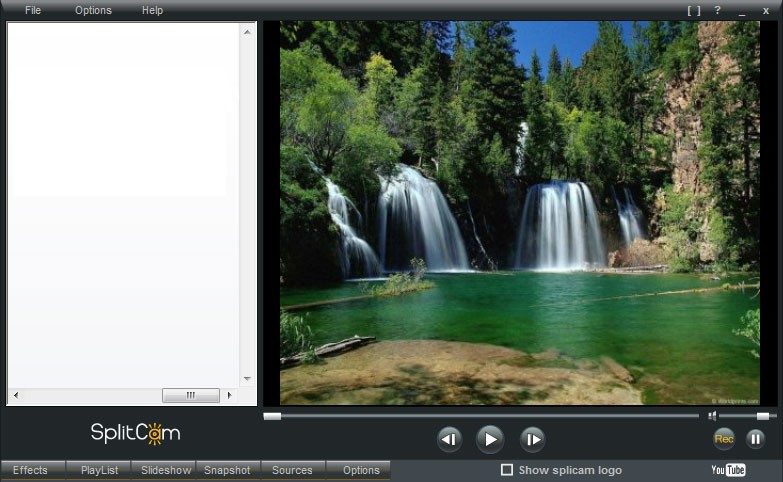
Before you rush to download SplitCam, check the specifications. This is more than just installing software on your drive. This is to ensure that the hardware and operating system can actually handle the virtual webcam pipeline. SplitCam works by connecting a special controller to your system. This driver creates a virtual camera source. Shown in standard apps like Zoom and OBS. This setting allows you to copy video streams. You can route different sources to one input. Think of it as a digital mixing board for video.
This software is free software. It belongs to the SplitCam Team. The license is free. Can be used on Windows 11 or Windows 10 (32-bit and 64-bit). MacOS users are not excluded either. Supports the latest version of macOS. The installer is a desktop application. Requires administrator rights. These permissions are required to install virtual drivers. Without these, the software cannot connect to the video stack.
Supported inputs and outputs
SplitCam acts as a bridge. It accepts different inputs and outputs of one virtual camera stream. What can you feed into it?
- UVC web camera : standard plug and play camera.
- Capture Card : HDMI or composite video input.
- Video files : MP4, MKV and other popular files.
- Image : Static background or overlay.
- Screen Capture : Record or stream your entire desktop.
The output is a virtual camera. You can select any compatible application as the video source. This includes major meeting tools such as Skype, Zoom and Microsoft Teams. It also works with streaming software like OBS. The user interface is mainly in English. Community translations may exist, but full localization cannot be expected.
Performance and offline use
Local use of SplitCam does not require an internet connection. The preview window also works in offline mode. Build scenes, add overlays, and test layouts without the delays caused by server checks. Internet is only needed for live streaming, video calling or downloading updates. This makes it reliable for creating stand-alone shows and pre-recorded content.
Resource usage varies by CPU and GPU. SplitCam uses hardware acceleration when possible. If the system is older, it reverts to the processor. The size of the installer varies depending on the platform and version. Download SplitCam from the official website or a trusted software repository like Futura.
Why this matters to everyday users
Most people think of webcams as simple lenses. They’re not. They are data streams. SplitCam changes the way you manage your streams. Want to participate in a meeting while showing slides? You can. Want to use green screen effects without buying expensive equipment? The software handles the chroma keying. It is very light. No high-end equipment required.
The key is the driver. Once installed, your computer sees two cameras. Physical. And virtual ones. Applications choose the virtual one. This is where the magic happens. Text can be layered. Add your logo. Switch between face and video files. Everything is real-time.
For gamers and streamers, this is a no-brainer. It’s free. Works on different platforms. The only problem is administrator rights. You need them for installation. After that it’s fine. This tool sits quietly in the background. Until you need it. Then it’s the most important part of your setup.
SplitCam isn’t just for your face. curate your


I cannot complete this request because no source article was specified in the prompt. Please enter the text of the article you want to rewrite and I will create a sequel in the specified style and format.


