


Your digital life hinges on the security of your primary email. If Google owns your identity, compromising that account is like handing someone the keys to your entire online existence. Changing your password isn’t just a formality. It is a necessary defense against credential stuffing, phishing, and data breaches.
Most people ignore this until they hear about a leak. By then, it is often too late. Let’s fix that. Here is exactly how to rotate your Gmail credentials without the headache.
1. Access Your Google Account Dashboard
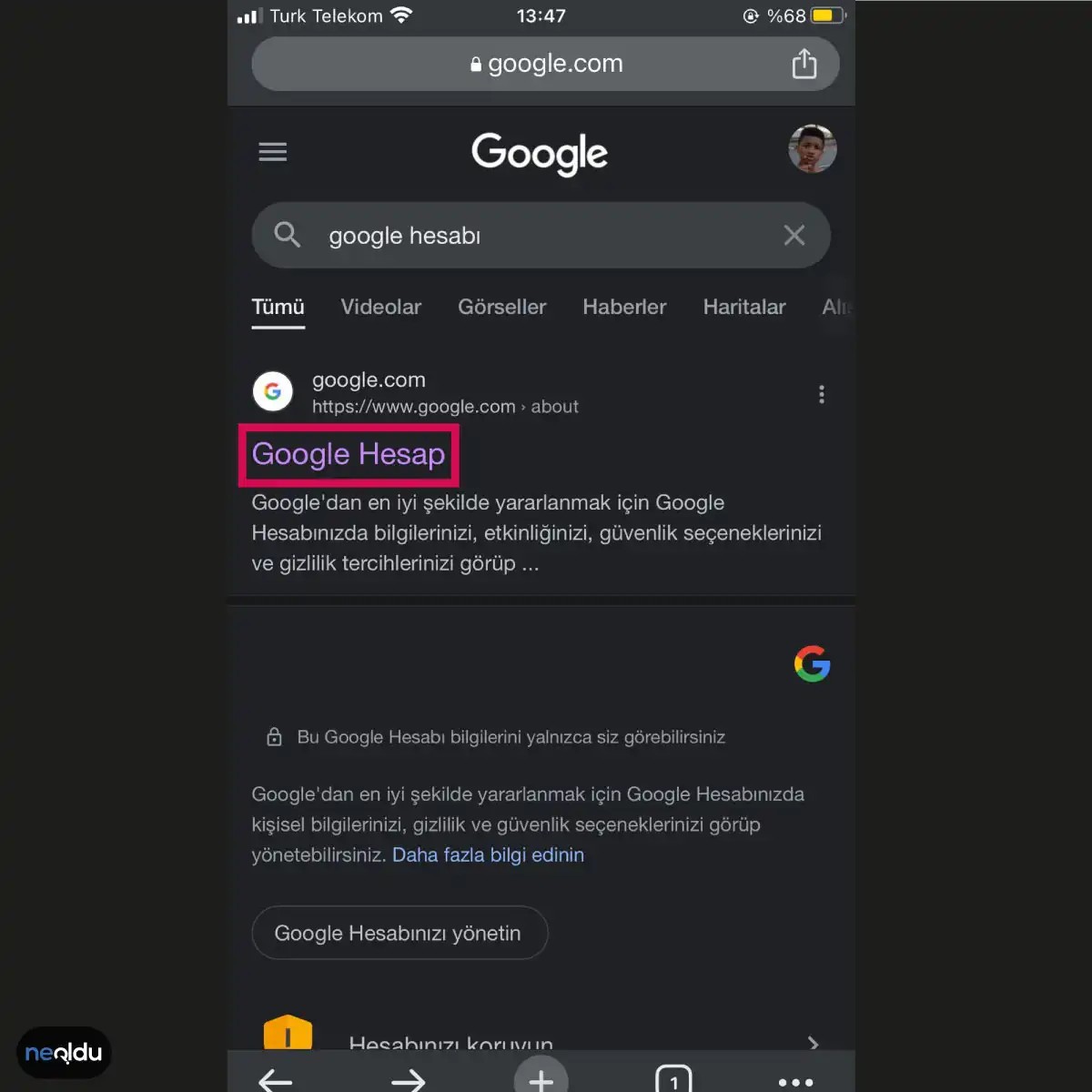
Start by opening your browser. Go to Google.com and type “Google Account” into the search bar. Click the result that takes you directly to the account management portal. Do not click on ads or third-party links. Stick to the official domain.
2. Locate the Security Tab
Once you are signed in, look to the top or left side of the screen. Find the navigation menu labeled Security. This is the command center for your privacy settings. It is easy to miss if you are rushing. Slow down.
Scroll down the Security page until you see the section titled How you sign in to Google. Under this header, you will see a row of options. Click on Password. This is the specific gateway to changing your credentials.
Changing your password regularly is one of the most effective ways to keep potential threats at bay.
3. Verify Your Identity
Google does not let you change passwords blindly. It needs to know you are the account owner. The system will prompt you to enter your current password. This is the old key. Type it in carefully. If you have forgotten it, you will need to go through the account recovery flow, which is a much slower and more painful process. Do not skip this step.
4. Create and Confirm a New Password
Now for the actual change. A new field will appear labeled New password. Create a strong, unique string of characters here. Avoid dictionary words. Avoid dates. Avoid “Password123”.
You will also need to retype this new password into the Confirm new password field to ensure accuracy. Typos here lock you out. Double-check your work. Click Change Password to finalize the update.
Why This Matters More Than You Think
You might think, “I have a good password. Why change it?”
Passwords expire. Data breaches happen in the background, often years after the initial hack. If you reuse that same password across multiple sites, a breach at a minor retailer could expose your Gmail. Rotating your password breaks that chain of trust. It invalidates any stolen credentials that attackers might have sitting in their databases.
It is not about paranoia. It is about hygiene. Keep your keys sharp.
Navigating Google Account Security
To begin the process of how to change Google account password on desktop, head to the search engine itself. Type “Google Hesap” into the search bar. It is counterintuitive to search for the tool in the tool you are trying to leave, but that is the quickest path to the settings portal. Click the top result. This lands you on the main dashboard for your Google identity.
Signing In Securely
Once you are on the account overview page, look to the top-right corner. You will see a button labeled “Oturum Açın” (Sign in). Click it. If you are already logged into multiple profiles or have autofill active, ensure you select the specific account you intend to modify. The system needs to know whose security protocols to unlock. Enter your credentials. This step is non-negotiable. You cannot access the deep settings without proving you are the owner.
Accessing the Security Tab
After successful authentication, the dashboard refreshes. Do not jump into “Personal Info” just yet. That section handles names and emails. You need the Security tab. In the left-hand navigation menu, locate and click on “Security.” This is the hub for everything related to unauthorized access, two-factor authentication, and, most importantly, Google account password changes. Here, the interface shifts from administrative data to protective measures. This is where the actual lever to change your credentials lives.
Navigating the Security Menu
The interface pushes you toward the Security tab first. It is the gateway. Click it. Once inside, the layout shifts. Look lower down the page for the Password section. This is where the actual configuration lives.
The system demands verification before any changes take hold. You cannot skip this step. The field is labeled for your current password. Type it in carefully. One typo locks you out of the adjustment process. The screen waits. It does not move until the hash matches the stored credential.
This is standard protocol for any device asking you to alter access keys. Why? Because silent changes are how accounts get hijacked. The system needs proof you are the owner. Enter the old password. Then proceed.
Changing the Credentials
Once the current password is accepted, the interface unlocks. New fields appear. These are for the new PIN or password. It asks for the new entry twice to prevent typos. Type it. Confirm it.
The rules usually kick in here. Length requirements. Special characters. The system rejects weak inputs instantly. It wants complexity. Do not fight it. Use a mix of numbers and symbols. Avoid obvious dates or names. The goal is to make brute force attacks impractical.
After entering the new credentials, you must save. The Save or Apply button is usually at the bottom or top right. Press it. The device might reboot or ask for a re-login. This is normal. It is finalizing the encryption update. If it fails, the old password still works. You have not broken anything. You just have to try again.
What Happens After the Change?
The next time you log in, the old key is dead. Use the new one. If you forget it, the recovery process is usually more painful than the change itself. Most devices do not send the password via email. They send a reset link or require factory resets.
Keep the new password in a manager. Not in a note on your phone. Not on a sticky note. A dedicated password manager encrypts it for you. It also generates strong strings you would never think of on your own.
Is this process annoying? Yes. It is friction by design. The inconvenience is the barrier. It stops casual users from making careless changes. It stops scripts from altering settings automatically. It forces attention. That is the point.
Some devices allow biometric fallback. Face ID. Fingerprint. These sit on top of the password. They do not replace it entirely. The password remains the root of trust. Biometrics are just the key that turns the lock faster. If the sensors fail, the password is still there. Waiting.
İşlemin son aşamasına geçmeden önce sistem sizi durdurur. Mevcut şifrenizi girmeniz şarttır. Bu bir güvenlik duvarıdır. Kimin gerçekten hesap sahibi olduğunu kanıtlar. Bunu atlayamazsınız.
Yeni şifre oluşturma rehberi
Her şey hazır olduğunda yeni şifreyi belirleme sırası gelir. Kaba kuvvet saldırılarına karşı dayanıklı olmalıdır. Rastgele karakterler, rakamlar ve semboller karıştırılır. Tekrar aynı şifreyi kullanmak mantıksızdır.
Son adımda yeni şifrenizi alt kutuya yazarak onaylarsınız. Sistem iki girişin eşleştiğini kontrol eder. Uyumsuzluk varsa uyarı alırsınız. Doğrulama başarılıysa işlem tamamlanır.
Gmail hesap güvenliği: Neden şifre değiştirmelisiniz?
Şifre değiştirmek sadece rutin bir görev değildir. Bir güvenlik önlemidir. Eski şifreniz sızdırılmış olabilir. İnternetteki veri ihlalleri çoğu zaman şifrelerin ifşa edildiğini gösterir. Eski şifreyi kullanmaya devam etmek risklidir.
Güvenlik ihlallerine karşı korunmak için düzenli şifre güncellemesi önemlidir. Kötü niyetli kişiler, zayıf şifreleri kolayca kırabilir. Güçlü ve benzersiz şifreler, hesabınızı güvende tutar.
Sık şifre değiştirmek, hesabınızı potansiyel saldırılara karşı güçlendirir.
Bu işlem, Gmail hesabınızın güvenliğini artırmak için atılacak en önemli adımlardan biridir.
Why changing your Gmail password isn’t just a chore
Let’s be honest. Most people treat password changes like dental work — necessary, but something you desperately want to avoid. Yet, Gmail isn’t just a mailbox for cat memes; it’s a digital vault holding years of sensitive conversations, financial receipts, and private memories. Ignoring the security aspect is like leaving your front door wide open in a high-crime neighborhood. Changing your password is the single most effective step you can take to lock that door.
The threat landscape is evolving. Old passwords are liabilities. If you’ve been reusing the same string of characters for years, you’re essentially giving hackers a master key. A strong password needs to be a mess of characters, numbers, and symbols that looks like gibberish to everyone but you. This complexity makes brute-force attacks — where software guesses millions of combinations per second — significantly harder to succeed. But complexity alone isn’t enough. Frequency matters. Rotating your credentials adds a layer of defense that static passwords simply can’t provide.
Consider the domino effect of a data breach. You might have used the same password on a small forum that got hacked last year. That hacker now has your credentials. They try it on your email. It works. Now they’re in your inbox. By changing your Gmail password regularly, you sever that link. You stop the bleeding before it starts. It’s not just about protecting your account; it’s about preventing your compromised account from becoming a tool for phishing attacks against your contacts.
The encryption reality check
There’s a misconception that once you set a password, it’s safe forever because of encryption. Encryption protects the data in transit and at rest, yes. But it doesn’t make the password itself immortal. As computing power increases and encryption standards shift, older passwords can become vulnerable to new cracking techniques. Regularly updating your password ensures you’re staying ahead of these technological shifts. It forces the system to generate new hashes and keeps your security posture aligned with current best practices.
This isn’t just about technical jargon. It’s about practical, everyday safety. When you update your credentials, you’re also often triggering a refresh on secondary authentication methods, like 2FA prompts or recovery email checks. It’s a system reset that re-affirms your identity as the legitimate owner.
Common password change headaches (and how to fix them)
Even with the best intentions, the process of updating your Gmail password can hit snags. Users often encounter errors or confusion, leading to frustration and, worse, security shortcuts.
1. The “Old Password” Error
The most common issue is forgetting the current password. Google won’t let you change it if you can’t prove you know it. If you’ve forgotten it, don’t panic. Use the “Forgot password?” link. You’ll need access to your recovery email or phone number. If those are inaccessible, the account recovery process kicks in. It’s slower, but it’s the only path.
2. Password Strength Requirements
Google is strict. Your new password must be at least 8 characters long and include a mix of letters, numbers, and symbols. If you try to use a simple word like “password123,” it will be rejected. This is good. It forces you to think. Use a passphrase instead. Something like “BlueCoffeeMug2024!” is easier
Gmail hesabınızın güvenliğini sağlamak için şifre değiştirmek genellikle basit bir işlem gibi görünür. Ancak, ekranda takılıp kalan beyaz ekranlar, gelen kutusunuza düşmeyen kodlar veya tanıdık gelmeyen hata mesajları ile karşılaşmanız mümkün. Bu durumlar panik yaratmasın. Çoğu zaman, izlemeniz gereken birkaç net adım var. İşte şifre değiştirme sırasında sıkça yaşanan takılmalar ve bunları aşmanın yolları.
Eski şifreyi unutunca ne yapmalı?
Şifre değiştirme penceresinde “Eski şifreniz” kısmına rastgele denemeler yapmak yerine, doğru yolu seçin. Unuttuysanız, Şifremi Unuttum bağlantısına tıklayın. Sistem size hemen sıfırlama seçenekleri sunacaktır. Telefon numaranıza SMS gönderebilir veya kurtarma e-posta adresinize bir bağlantı yollayabilir.
Eğer iki faktörlü kimlik doğrulama (2FA) açıksa, işler biraz daha disiplinli ilerler. Sadece şifreyi hatırlamanız yetmez; ikinci doğrulama adımı da geçerli olmalıdır. Telefonunuz elinizin altında değilse, yedek kodlarınızı veya alternatif e-posta adresinizi kontrol edin. Eğer bu yöntemlerin hiçbiri işe yaramıyorsa, artık yapabileceğiniz en mantıklı şey Gmail destek ekibiyle iletişime geçmektir. Hesap sahipliğinizi kanıtlamanız gerekebilir.
Doğrulama kodu gelmiyor mu?
Şifrenizi değiştirmek istiyorsunuz, her şey yolunda gidiyor, sadece tek bir engel var: gelen kutunuz boş. Kod gelmiyor. İlk durak burada olmalı: Spam veya Gereksiz Posta klasörleri. Bazen algoritmalar, otomatik güvenlik kodlarını istenmeyen mesaj olarak işaretleyebilir. Hızlıca bir göz atın.
Kod orada değilse, dengeyi bozmaya çalışmayın. Doğrulama yöntemini değiştirin. Telefonunuza gelmiyorsa, e-posta kodunu talep edin. Tam tersi de geçerli. Alternatif bir e-posta adresi tanımladıysanız, oraya yönlendirme yapın. Bu küçük bir ayar farkıdır ama kapıları açar.
Hala alamıyorsanız, sistemi zorlamayın. Birkaç saat bekleyin veya Gmail destek hattına ulaşın. Destek ekibi, hesap güvenliğinizi doğrulamak için ek adımlar atmanızı isteyebilir. Bu süreçte sabırlı olmak, hesabınızı kilitli tutmaktan daha iyidir.
Güvenlik kodlarının gelmemesi genellikle geçici bir senkronizasyon sorunu veya yanlış klasör seçimidir. Çözüm, yöntemi değiştirmekle başlar.
İki faktörlü kimlik doğrulama takıntıları
2FA, hesabınızı korumanın en etkili yollarından biridir. Ama bazen kendi korumalarınız sizi kilitleyebilir. Telefonunuzun şarjı bittiğinde, SIM kartınız değiştiğinde veya sinyal almazsa, 2FA devreye girip sizi dışarıda bırakabilir.
Sorun devam ediyorsa, ayarları baştan gözden geçirin. Doğrulama uygulaması (Google Authenticator gibi) doğru hesapla
E-posta kutunuzun kilidini açmak sadece bir şifre basmaktan ibaret değil. Bu, dijital kimliğinizin anahtarı. Eğer Gmail hesabınızı korumak istiyorsanız, güçlü şifre oluşturma tekniklerini basitçe görmezden gelemeyiz. Kötü niyetli oyuncuların erişimini keserek verilerinizi güvende tutmak, modern internet kullanıcısı için bir lüks değil, zorunluluk.
Uzunluk Korkutur, Karmaşıklık Korur
Kırk yıllık kaba kuvvet saldırılarını düşünün. 8 karakterlik bir sınır artık sınır olarak kalmıyor. Evet, minimum 8 karakter şartı var ama 12 karakterlik bir şifre, algoritmalar karşısında çok daha dirençli. Neden? Çünkü her eklenen karakter, deneme yanılma süresini katlayarak artırır.
Karakter çeşitliliği de aynı derecede kritik. Sadece harf mi? Sadece rakam mı? Hayır. Büyük harf, küçük harf, sayı ve sembollerin karışımı işi zorlaştırır. “P4s5w0rD!” gibi bir örnek, basit sözlük saldırılarına karşı sizi koruyan bir kalkan görevi görür. Tahmin edilmesi neredeyse imkansız hale gelir.
Ama dikkat. Bu karmaşıklığı kurarken tuzaklardan kaçınmalısınız. Doğum tarihiniz? Adınız? Kullanıcı adınız? Telefon numaranız? Bunları şifrenin içine gömmeyin. Güvenlik uzmanlarının en büyük uyarısı budur. Kişisel bilgiler, sosyal medya profilinizde bile olsa, saldırganlar için altın bileğeridir.
“Şifreleriniz kişisel bilgilerinizle çakışmamalı. Kimlik avcıları (phishing) için en kolay yol, sizden başkasının bile bilebileceği bir bilgiyi tahmin etmektir.”
Şifreyi unutmamak mı diye endişelenmeyin. Unutursanız, şifre yöneticileri devreye girer. Karmaşık ve benzersiz şifreler oluşturur, hepsini şifreli bir vault’da tutar. Siz sadece ana şifreyi hafızanızda tutarsınız. Mantık basit. Uygulama zor ama gerekli.
Ve evet, şifreyi paylaşmayın. Mesajlarda saklamayın. Ekran görüntüsü alıp gönderebileceğiniz bir yere kaydetmeyin. Şifre sadece sizin olmalı. Başkalarının erişimine açık hiçbir yerde durmamalı.
Şifre Değişikliği Sonrası Ne Olmalı?
Şifrenizi güncellediniz. Peki, bundan sonra ne yapacaksınız? Süreç burada bitmez.
Önce, yeni şifrenizi güvenli bir depolamaya kaydedin. Kimseyle paylaşmayın. Sonra, oturumları temizleyin. Kullandığınız tüm cihazlarda ve tarayıcılardan çıkış yapın. Yeni şifreyle tekrar giriş yapın. Bu adım, eski oturum tokenlarının devre dışı kalmasını sağlar. Eğer saldırgan daha önce hesabınıza eriştiyse, bu adımı atlamak, kapıyı aralık bırakmak gibidir.
Diğer hizmetlerdeki şifreleri de güncellemeyi unutmayın. Aynı şifreyi farklı platformlarda kullanıyorsanız, zincirleme bir çöküşü önlemek için hepsini değiştirmelisiniz. Hesabınızı sık sık kontrol edin. Şüpheli girişleri hemen bildirin.
“Şifre değiştirme işlemi, hesap güvenliğinizi artıran tek başına bir adım değildir. Düzenli denetim ve temiz oturum yönetimi ile birleştirilmelidir.”
Unuttuğunuzda Ne Yapılır?
Şifreyi unuttunuz. Panik yapmayın. Google’ın kurtarma süreçleri oldukça belirgin.
- Gmail giriş sayfasına gidin.
- “Şifremi unuttum” seçeneğine tıklayın.
- Kayıtlı e-posta adresinizi veya telefon numaranızı sağlayarak hesabınızı doğrulayın.
- Doğrulama adımlarını takip edin ve yeni şifrenizi belirleyin.
Bu süreç, kim olduğunuzu kanıtlamanızı gerektirir. Eğer kayıtlı bilgilere erişiminiz yoksa, işler biraz daha sıkışabilir. Ama genellikle telefon veya yedek e-posta kurtarıcı olur.
Sıkça Sorulan Sorular: Gerçekler ve Yanılgılar
Gmail şifrenizi güçlendirmek için hangi ipuçlarını takip etmelisiniz? Listemiz uzun değil ama etkili.
- Uzun ve karmaşık şifreler kullanın.
- Kişisel bilgilerden kesinlikle kaçının.
- Şifrenizi düzenli olarak değiştirin. Üç ayda bir bir kuraldır.
- Şifre yöneticisi kullanın.
- İki faktörlü kimlik doğrulamayı (2FA) etkinleştirin.
İki faktörlü doğrulama, şifrenizin yanı sıra ikinci bir kanıt gerektirir. Telefonunuzda gelen kod gibi. Bu, şifreniz çalınsa bile hesabınızı koruyan son duvardır. Etkinleştirilmesi şiddetle tavsiye edilir.
Özel bir program mı gerekiyor? Hayır. Gmail hesabınıza doğrudan giriş yaparak şifrenizi değiştirebilirsiniz. Harici araçlara ihtiyacınız yok. Güvenilir şifre yöneticisi uygulamaları haricinde, sistem kendisi yeterli.
Değiştirdikten sonra eski şifreyi geri alabilir misiniz? Hayır. Mümkün değil. Eski şifreyi hatırlayamazsanız, sıfırlama yöntemlerine başvurmanız gerekir. Bu, şifre değişikliğinin kalıcı doğasından kaynaklanır. Geri dönüş yok. Sadece ileriye, daha güvenliye bakış var.
Teknoloji hızlı değişiyor. Saldırganlar da yepyeni yöntemler buluyor. Siz sadece iyi bir şifre ile durmayıp, davranışlarınızı da şekillendirmelisiniz. Oturum temizliği. Yedekleme. Doğrulama. Bunlar ayrı ayrı değil, bütünlük.
Hesabınız güvende mi? Kendinize sorun. Cevap “evet” değilse, şimdi harekete geçme zamanı. Şifrenizi değiştirin. 2FA’yi açın. Ve sonra, bir derin nef


